Every pupil at their own level. You see who knows what.
Weekly tasks per subject, for the class or per child. Worksheets in a minute, with the approach on the sheet and a QR code that marks them. And practice in the app that adapts to every child, with an explanation before the questions and after every mistake.
Before the questions the approach, while practising a tip when a pupil gets stuck, and after a mistake the worked example. The same drawing as on the worksheet.
First the approach, then practice, and help with every mistake
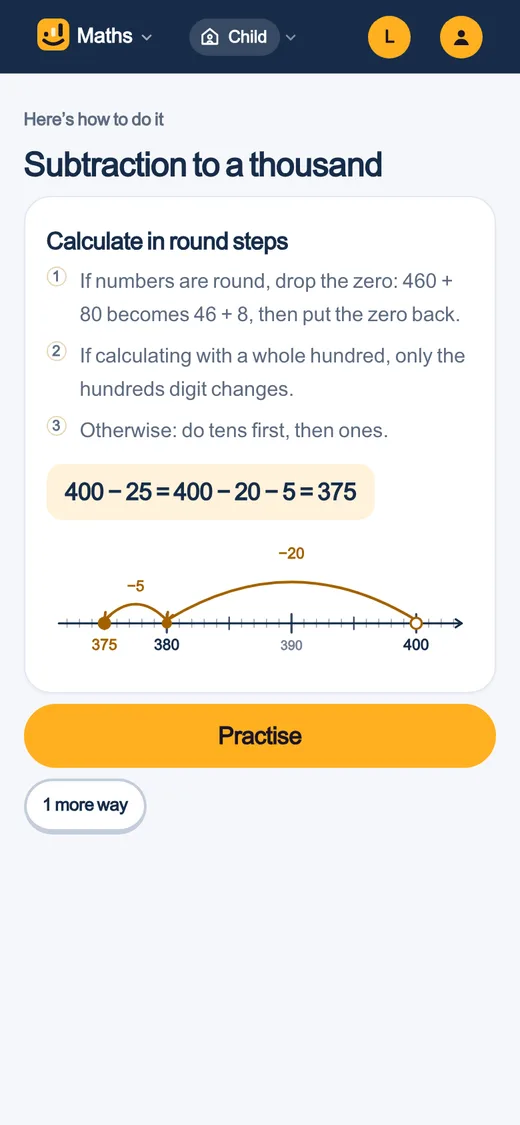
The approach firstEvery topic starts with how you do it, with the same drawing as on the worksheet.
Practising at their own levelEvery pupil gets their own questions: what they can almost do, and what they need to keep up.
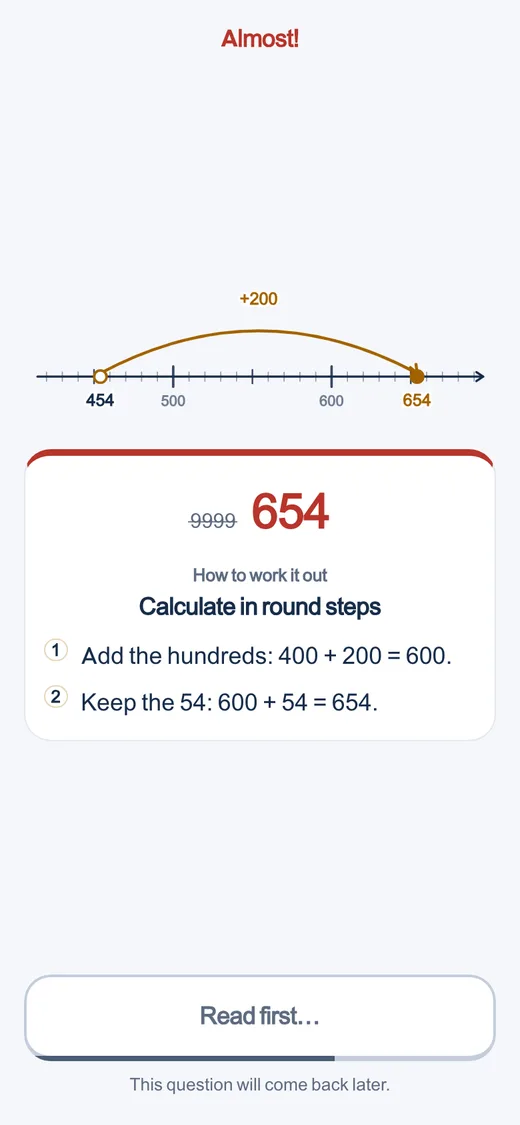
Help with every mistakeThe worked example straight away, and the question comes back later in the session.
Worksheets
A worksheet in a minute, with the answers
Pick a topic, the number of questions and the help on the sheet. You get a student sheet and an answer sheet, and new questions every time. No account needed to print.
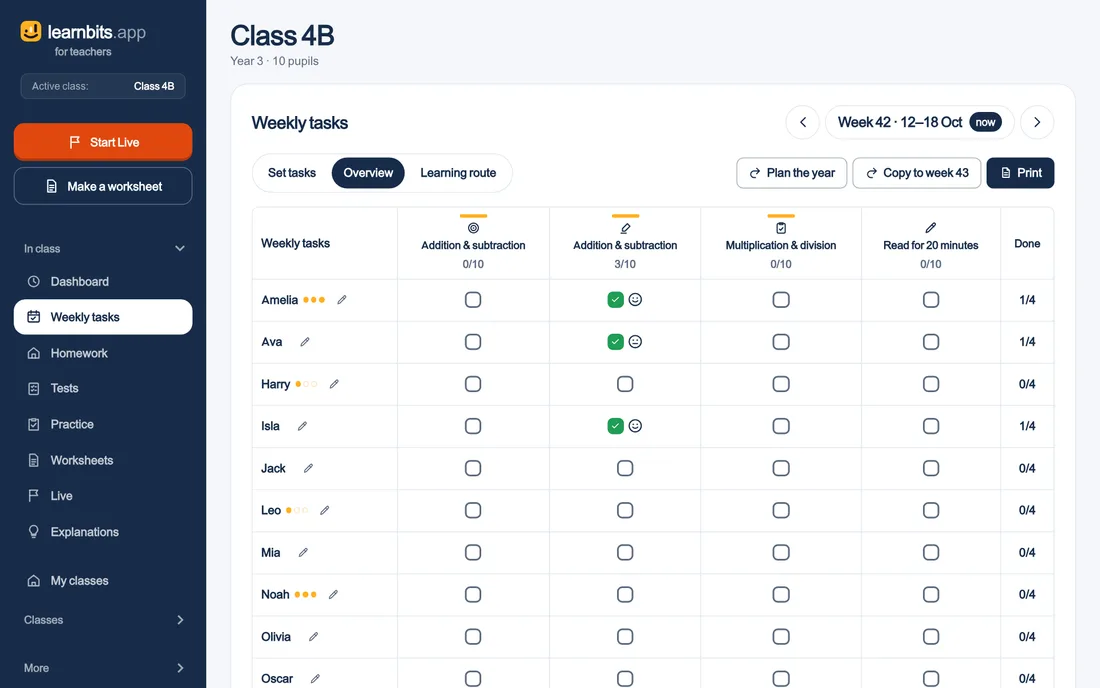
Set out on one screen what the class does this week
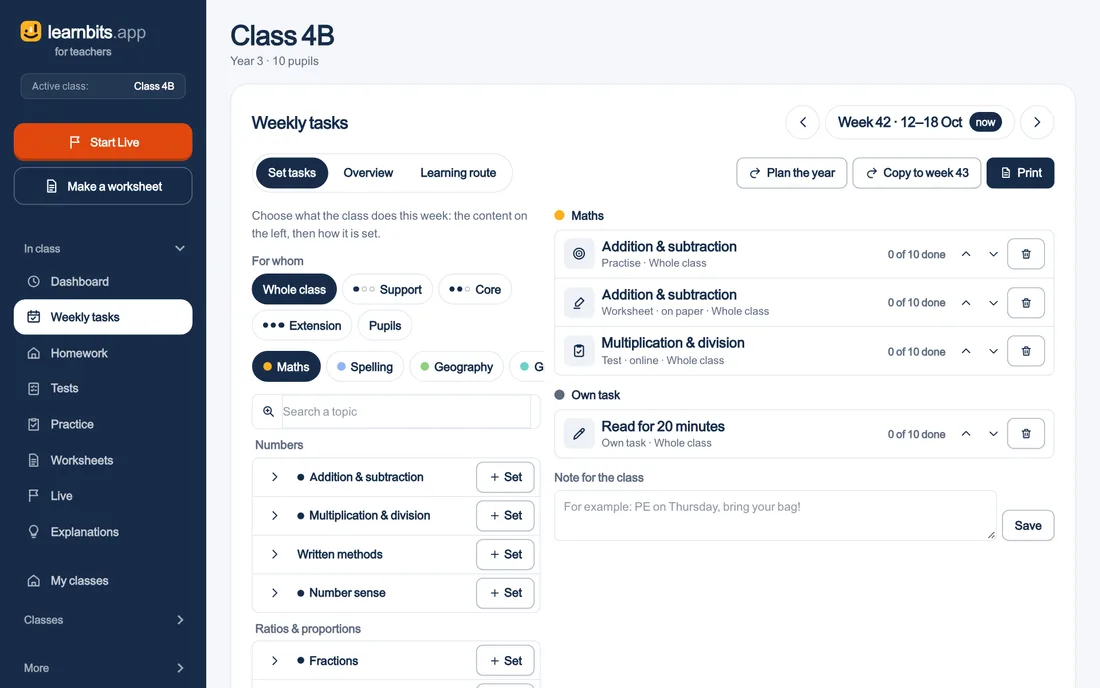
Per week and per subject you pick the content on the left and set how: practice in the app, a worksheet (online or on paper), a test, an explanation, or a line of your own such as «Read your reading book for 20 minutes». For the whole class, for a learning route or for individual pupils. With a note for the class: «PE on Thursday!».
Homework has the same shape, on a list of its own. The week after, you do not start again: copy the week, and every learning path moves on a step.
Content on the left, the week on the right: practice, a paper worksheet, a test and a line of your own.
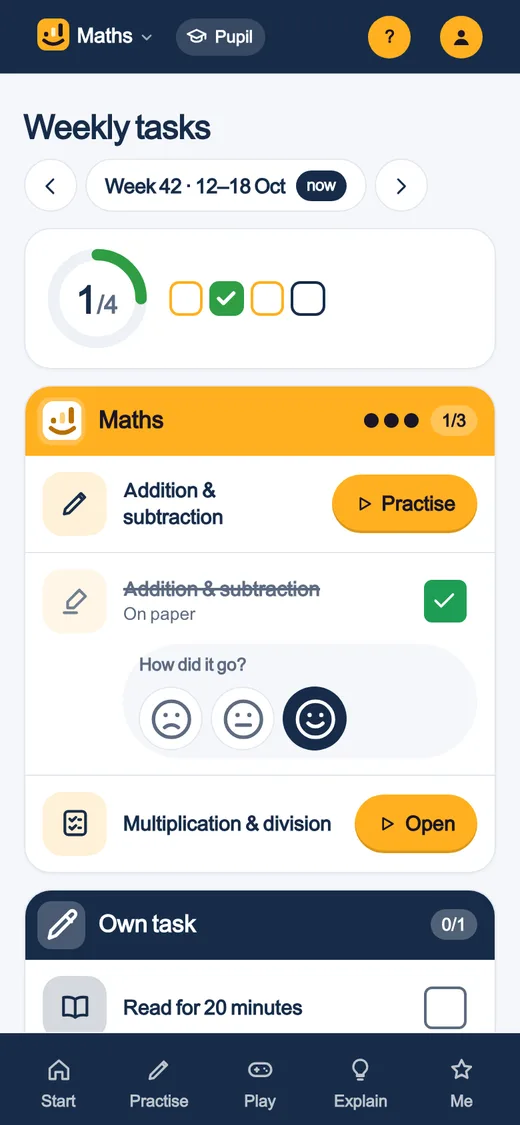
A pupil sees their weekly tasks in the app, per subject, with a tick when something is done. A digital task ticks itself off; a paper task they tick off themselves. For every task they pick a smiley: hard, all right, went well.
What a pupil sees: their week, per subject, and how it went.
Learning routes and year plan
Three routes, and the whole year in one go
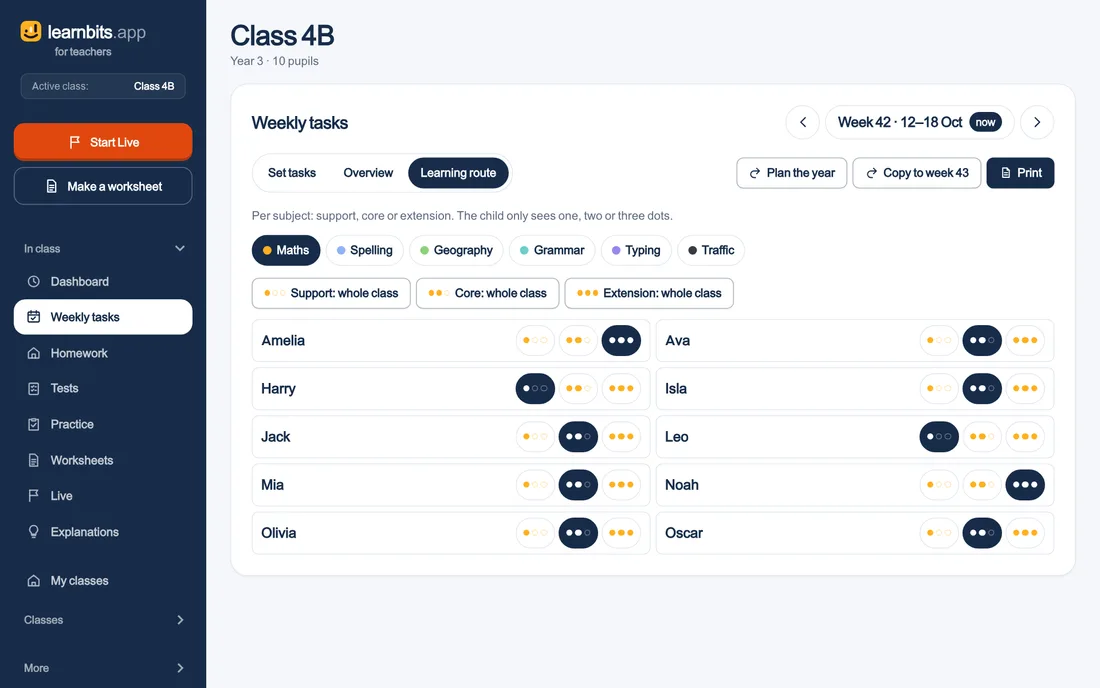
Put each child on a learning route per subject: support, core or extension. You set different tasks per route. The child only sees one, two or three dots next to the subject, never a word.
A route per subject per child: support, core or extension.
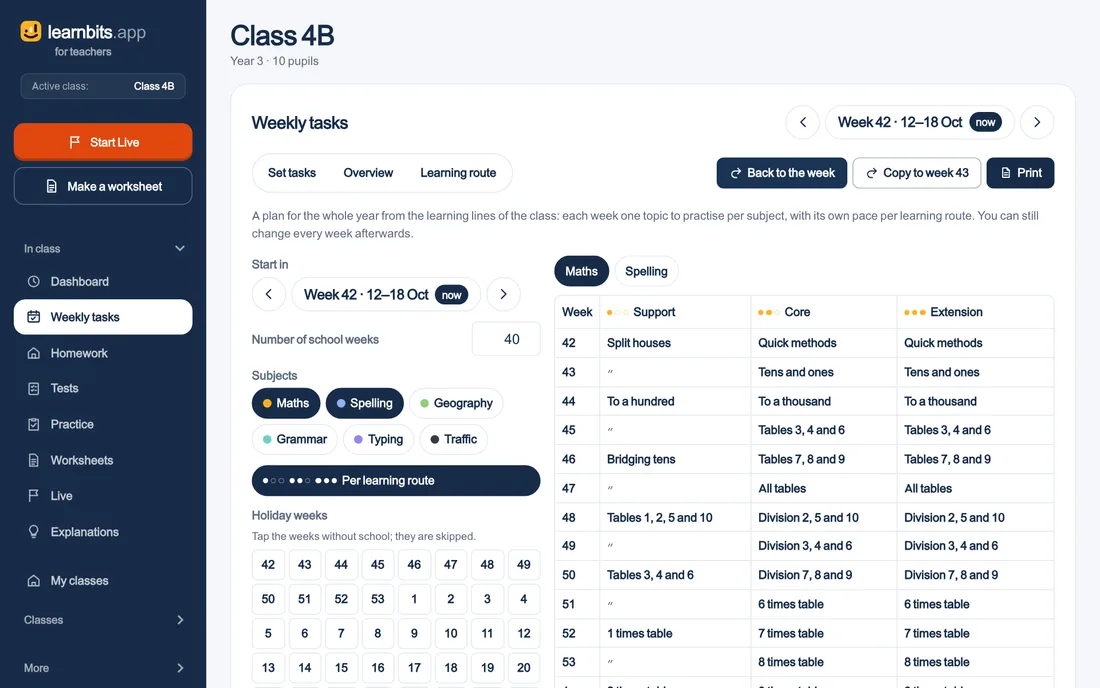
Plan the year gives you, per subject, a suggestion of 40 school weeks from the learning strands of your year group, at its own pace per route. You tap away the holiday weeks and set it all at once. After that, every week is simply editable.
The year plan: one topic per subject each week, per learning route.
Printing
One pack per pupil, in one PDF
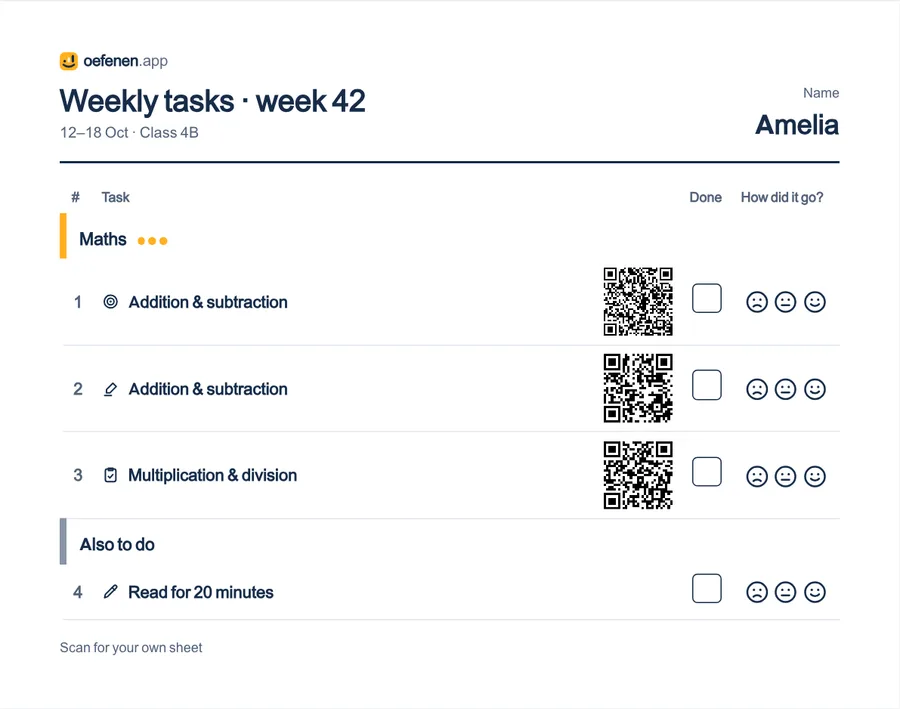
Print the week makes an overview sheet for each pupil: their name, the week, their tasks per subject with the dots of their route, a box to tick and three smileys. Next to each task is a QR code to their own sheet or assignment. Behind it come the paper worksheets and tests, with their name on them.
All children or a selection, weekly tasks or homework, with or without the sheets: print once, and you have the whole pack.
The overview sheet: a QR code to their own sheet per task, a box and three smileys.
How did it go
Per child and per task: done, the smiley and the score
The overview sets the class against the week’s tasks: per child a tick or an empty box, the smiley they chose, and for practice and tests the score. At the top, per task, how many children are done.
Who is done, and how did it go: the week in one table.
A test from the app, such as the times tables or the capitals, gives a report per pupil, and one click sets the follow-up for whoever needs it.
Your class at a glance
See who has mastered what, and set what is needed
The heatmap of your class runs from area to topic to step, down to the single sum: green sticks, yellow is still slow, red does not work yet, grey has not been practised. Per column you see how many pupils have mastered it, and Who needs what lists the pupils and the advice for each step.
From that heatmap you set practice: for the whole class or for those who have not mastered it yet, with a start and end date, done after one round, a few rounds, or once it is mastered. The practice sits at the top of the pupil’s start screen. You choose per subject whether what is set comes first, or may wait.
Practice that works
Evidence-informed, and at every child’s level
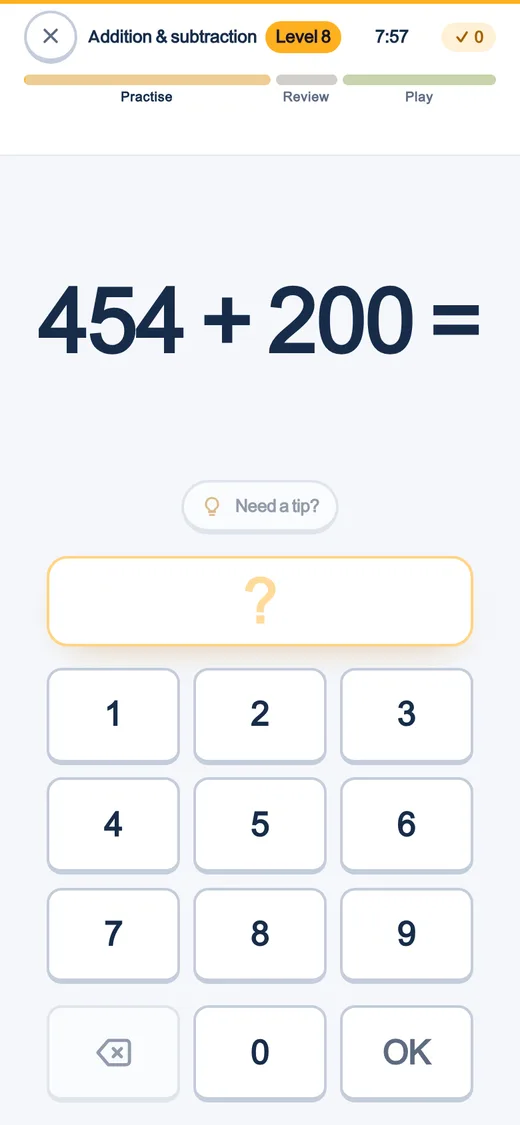
A session is 8 minutes of practice, 2 minutes of review and 5minutes of play. Pupils give every answer themselves, no multiple choice anywhere. After a mistake the session stops for the method, step by step, and the sum comes back until it works. The app picks each sum so that about seven in ten work out.
Switch on mastery learning per subject, and the next step only opens once the previous one comes from memory. Switch games off per subject, or entirely. Why it works like this, with the sources, is in the theory.
The maker
Two roads to the same worksheet
The anonymous maker asks for nothing: pick a subject, a domain and a block or a whole path, pick a number of sums, and print. Nothing is saved and nothing leaves your browser — the seed and the choice live in the address, and the sheet is laid out on your own machine.
The generator behind an account (/leerkracht/werkbladen) is the same engine, with two things added: a QR code back to the answers, and — once you have set up a class — a QR of its own per pupil. Without a class it stays exactly as anonymous as the maker above.
The QR code
Three modes, and you choose
The code on a worksheet can do three things, and you set which:
Answers. The code opens the answer sheet straight away — handy when you mark it yourself and just want to skip typing it out.
Fill in. A pupil scans, types their name and fills in the answers; the app marks it and shows the score. The submission lands with you, anonymous or under that name.
Class. Only available with a class: every pupil gets their own QR, with their first name already filled in.
Linked per pupil
Linked, without leaking the code
The address behind a pupil’s QR carries a token of its own — not the sign-in code they use in the app. That token is computed from the sheet, the pupil and a server secret, and nothing is stored: a leaked link only ever opens that one filled-in sheet, nothing else. Submissions land with you alone (Learnbits never touches a child’s own progress with it — a worksheet is a moment in class, not a learning line).
Explained, online too
The same worked example as on paper
If a pupil fills in the form online, they can get the same worked-out explanation that is printed on the answer sheet — after a mistake, or always, whichever you set: the block’s approach, step by step, and the right answer. No new drawing at the moment a child is already struggling — the same model, just on a screen instead of on paper.
The class dashboard
Results land with you, and nowhere else
A sheet without a class gets a plain list: name, score, when it came in. A sheet set to class mode gets the whole class in one overview, per pupil. That is separate from the class dashboard that tracks day-to-day progress — that is written up in full on the school page.
Live
For the whiteboard: practising together as a game
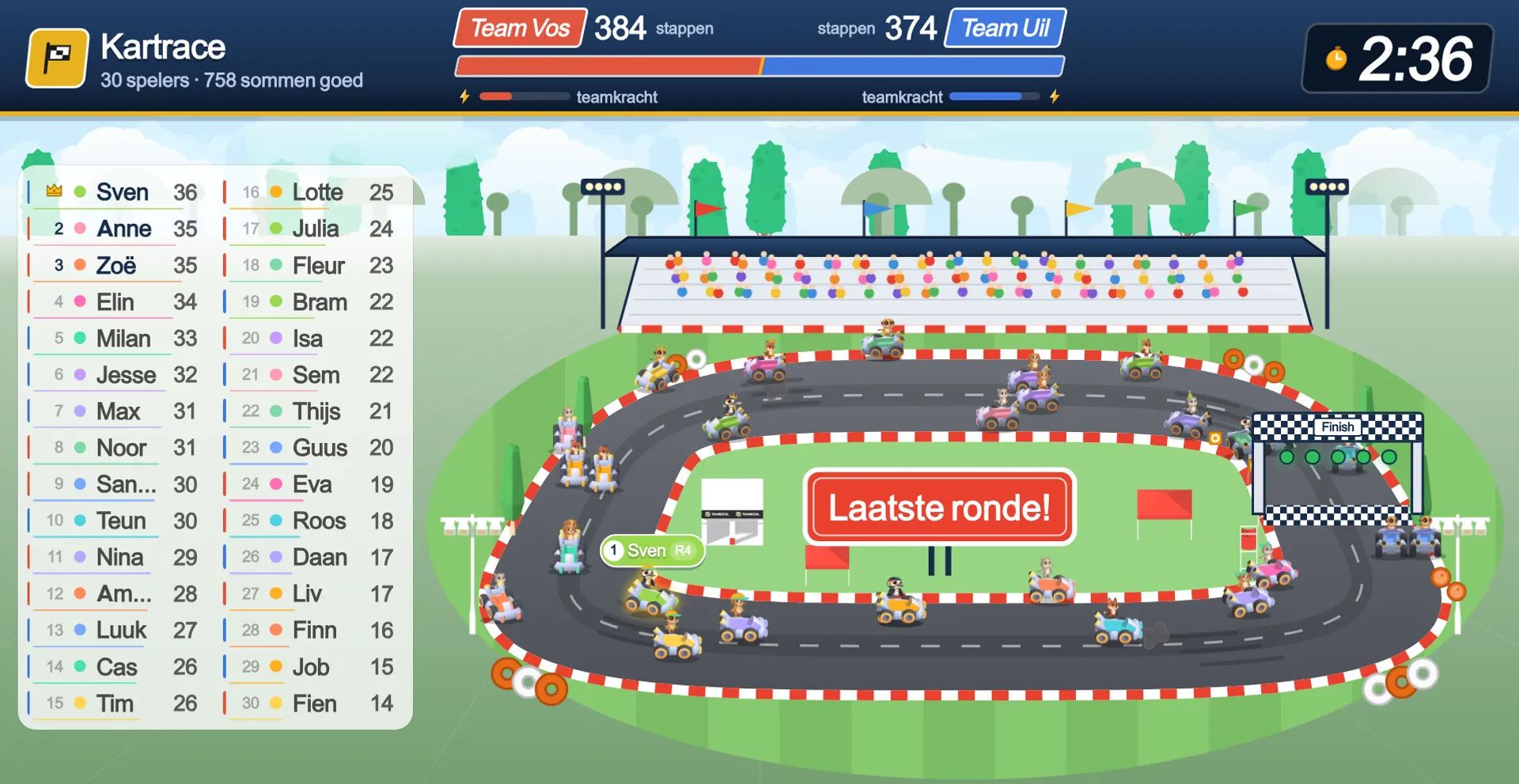
Alongside the worksheet there is a second form for the whole class: a game on the whiteboard where every pupil gets their own sums, at their own level, on their own laptop. No multiple choice, no leaderboard — a correct answer is always one step for the game, so every child has roughly the same chance of winning. How Live works.
If you want everyone to see the same question at once, there is Quiz: you click on, and after every question you see what the class answered. Duel puts two to four teams side by side on one screen, and in Move children answer with their heads, in front of the camera of the whiteboard or the TV.
Live, for real
This is what your class sees on the board
Sign in with your school email address, make a class and add your children — and your class plays this tomorrow.
Your school email address gets you in, and the start guide sets up your class in five steps: your school, your class, your pupils and what they will practise.